
As a CISO, there’s a good chance that you’ve had to urgently deal with at least one permission nobody remembers granting. Maybe it’s a former project lead that still holds Compliance Search rights two years after the investigation closed. It could be a vendor’s temporary access from Q1 quietly persists into Q4. In all likelihood, these are probably examples of malicious grants. They’re more likely due to the “we’ll clean it up later” type of access management that prevails at most enterprise organizations out there. Nonetheless, this is the sort of gap auditors love to find. Thankfully there’s now a native ability within Microsoft to close this gap. This blog post is intended to serve as a CISO’s guide to auto-expiring role group assignments in Microsoft Purview. I’ll focus on what’s changed, how this feature replaces an often-used workaround in Entra Privileged Identity Management (PIM), and the advantage this newly available feature gives your Microsoft Purview administrators and data security teams.
First… What’s Changed?
For quite some time now, Microsoft Purview role groups have bundled multiple permissions into a single assignable unit (e.g.: Audit Manager, Purview Administrators, Compliance Data Administrator, etc.). Assigning one to a user or security group has until now meant assigning it indefinitely, unless someone on your team remembered to remove it later. I know, I know… is yours the unicorn where this happens reliably? In most complex organizations this is one of those “on best effort” type of situations, unless you’ve invested and maintained some kind of custom workflow to do this.
So, allow me to clarify the pain point here. The convenience of the Purview role group assignment is great. The ability to do this without respecting the principles of least privilege or Just In Time access? Let’s classify that under “needs improvement”.
Thankfully, as of late July 2026, the common sense option that many in the field have been demanding for years, is now available. Expiration dates can now be selected when granting role group assignments in Microsoft Purview, ranging from 1 day to 2 years out (from the current date in the local time zone of the administrator who sets the expiration). What does this mean for your Purview administrators? They can now grant the role group permissions, set the expiry date for almost all but a very few instances where permanent assignment may be necessary, and Purview automatically strips the assignment when the business rationale for this access is no longer valid. This means a sharp reduction in the need to rely on someone’s calendar reminder, or some clunky workflow that could also be susceptible to technical changes or deprecation. According to Microsoft’s documentation, the rollout of this feature is expected to finish by September 2026. The other bit of good news is that this will now cover both new and already-existing role group assignments (note: existing role group assignments do need an admin to add an expiry date; they will not expire retroactively).
There’s one notable exception I want to draw your attention to: All built-in and custom Purview role groups except eDiscovery Administrator and eDiscovery Manager are eligible for automatic expiration. The reason these two are not, is likely because there are legal hold and evidentiary considerations to both of these roles.
The Entra Privileged Identity Management (PIM) Workaround this Replaces:
Security teams didn’t wait around for Microsoft to solve this problem. For years, the standard fix has been routing Purview access through Entra Privileged Identity Management for Groups. First a security group was created, which was then assigned to the Purview role. It was then enrolled in Entra PIM, and users were made eligible rather than permanent members. Does it work? Sure. Is that what it was meant to do? Hardly. Then there’s the fact that this workaround creates a five-step process built to solve a bigger issue (Just In Time activation with approval and MFA) which seems overkill when most compliance teams simply need access that ends by a specific date. Keep in mind that Entra PIM is a solution to a different problem, but over time even despite its sense of overkill, it became a solution to this problem too.
Why I think You Should Probably Use Auto-Expiring Role Group Assignments in Microsoft Purview:
- It simplifies the access and governance pathway. PIM for Groups shuttles a user through a security group and a PIM policy before they ever make use of the actual Purview role assigned to them. By contrast, native role group assignment expiry in Purview removes both intermediate steps. This means fewer objects between a user and sensitive compliance data, which in turn means fewer places for a misconfiguration to leave access open longer than intended. Sure, a well architected PIM for Groups workflow under tight governance routinely reviewed does mitigate some of these risks, but as they say, not all security architects are the same and there’s often a meaningful/noticeable difference between theory and practice.
- It reduces group sprawl. The Entra PIM workaround needs a dedicated security group for every role-group scenario you want to time-box. Multiply that across Data Loss Prevention, Insider Risk Management, Audit, and Communication Compliance, and you’re maintaining a bloated inventory of groups someone eventually needs to name, own, and decommission. No such governance overhead is needed if you use auto-expiring role group assignments in Purview.
- The access and audit trail now housed under the same roof. With the Entra PIM workaround, proving why someone had access means correlating Entra activation logs with separate Purview membership records (Does anyone genuinely audit the justification provided for PIM role activations?!) With native expiry of these role group assignments in Purview however, the expiration date is written into Purview’s own audit log as soon as it’s set, and it’s visible directly in the Members view and the My Permissions page. I think there’s a huge efficiency boost here.
- A better way to manage the actual risk you’re trying to manage. Most temporary access requests aren’t about “should this person request activation every time?” Instead, they’re usually about “can this stop automatically on a specific date?” Sure, Entra PIM handles the former rather well. Auto-expiring role group assignments in Purview handles the latter more directly, without borrowing infrastructure built for a different problem.
- Potential cost reductions. PIM for Groups requires Entra ID P1 or P2 licensing for every user in scope. By contrast, auto-expiring role group access in Purview does not. Would this help to better control some of the costs when you’re time boxing access for hundreds of contractors, auditors, or rotating compliance staff? Your mileage may vary.
A Few Key Considerations:
Auto-expiring role group assignments in Purview is a nice feature that brings under the same roof an important governance capability, but this shouldn’t be a replacement for human judgment. For example, it doesn’t notify anyone before access lapses. This means your security and governance teams should still check the My Permissions view or build that check into a review cadence. Also, auto-expiring role group permissions will not override an Entra role that grants the same permissions/access through a separate, unexpired path. And last but not least, PIM for Groups continues to serve an important role where approval workflows and MFA-gated activation matter more than a fixed duration of a role group assignment.
A Practical Next Step:
This may seem like a tiny feature, but I believe there’s a pretty substantial governance payoff. One practical step you can take is to generate a report of your role group assignments in Purview that are permanent. You may choose to focus on contractors, or project-based compliance work, and anyone who’s changed roles internally. Anywhere the access has a natural end date, provide directives to ensure they’re set for expiry. Reserve Entra PIM for Groups for the handful of roles where just-in-time activation is genuinely the control you need, not the default you reached for because Purview didn’t offer anything better. Here’s how to check within the Purview portal:
Step 1: launch the Purview portal with an administrator account that has the role management role or Global Administrator permissions.
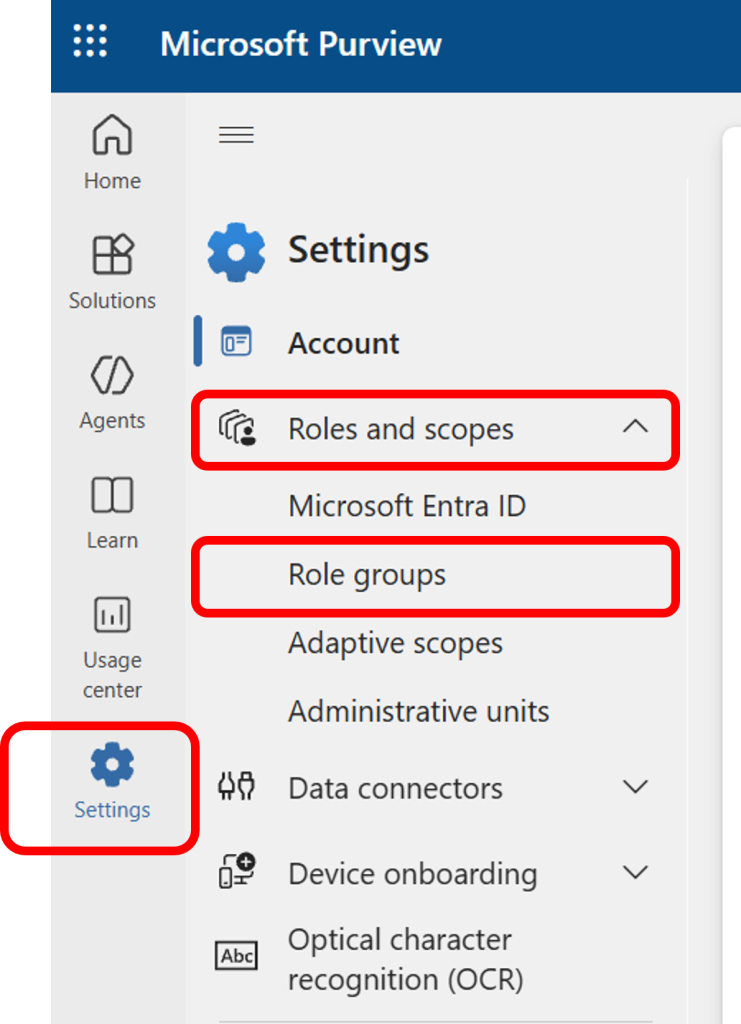
Step 2: Navigate to Settings > Roles and scopes > Role groups
Step 3: Use the updated interface tabs to filter and review role group assignments
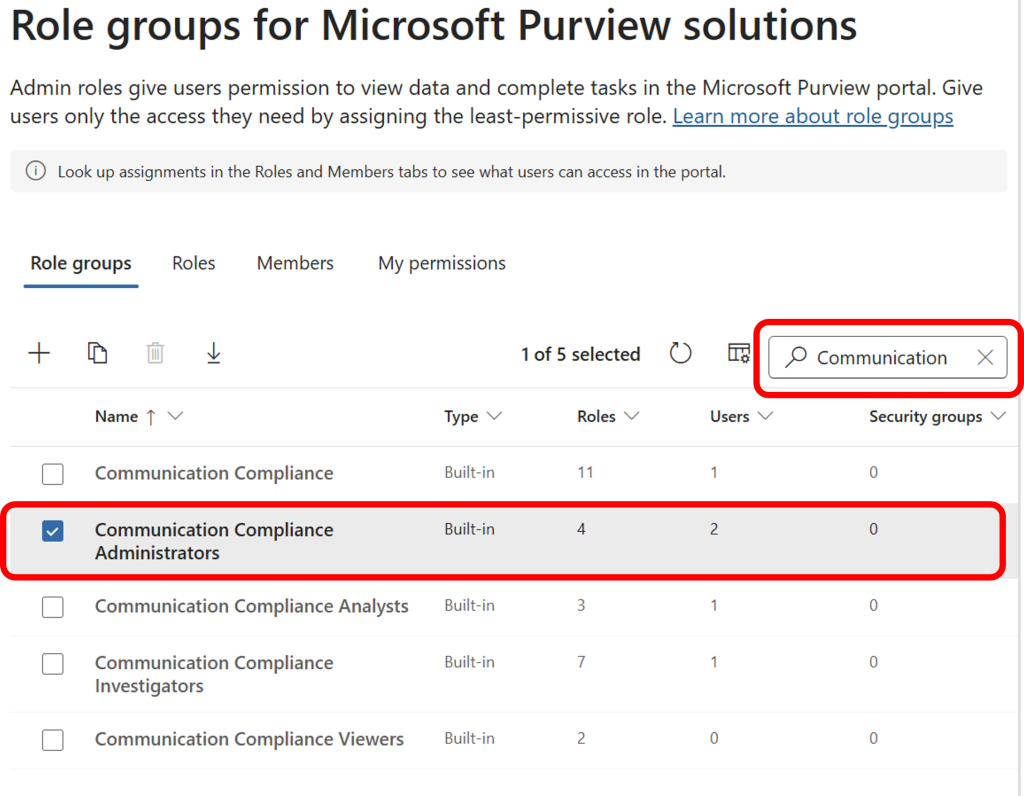
Step 4: Select the role group you want to examine more closely, to expand the fly-out blade.
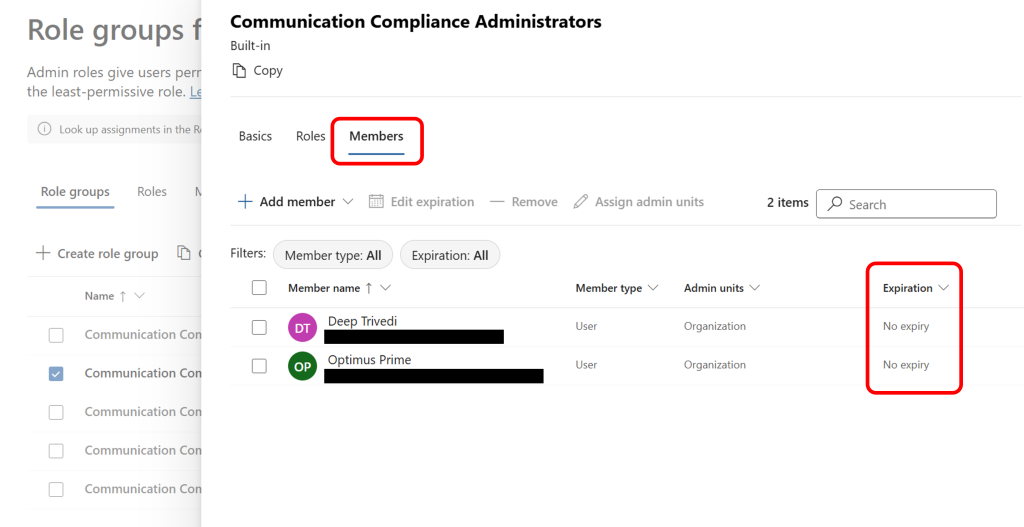
Step 5: Select the Members tab and examine the expiration set for the members within that role group.
Standing privilege is the access control equivalent of an unlocked door nobody remembers leaving open. I like to think of this feature as a lock with a timer. If your admin teams want to know exactly whose door doesn’t have a lock with a timer, I would recommend that PowerShell be used to generate a more comprehensive report than the steps I showed, because while it’s a great at-a-glance view, it is tedious for a larger scale effort.
I would also point your technical teams to Microsoft’s guidance on how to how to add auto-expiring role group access for users/groups in Microsoft Purview for additional info.
I trust this provides you with some clear guidance on where and why using auto-expiring role group permissions in Microsoft Purview is a meaningful step forward as you chart your forward path to evolving your data security programs and governance.
Thanks for reading, and please reach out if you’d like to discuss the practical next steps you can take… or if you have a question and just want to chat more!